How to Leave Room for Text Beside a Christmas Portrait
By pugoing · 2026-11-24
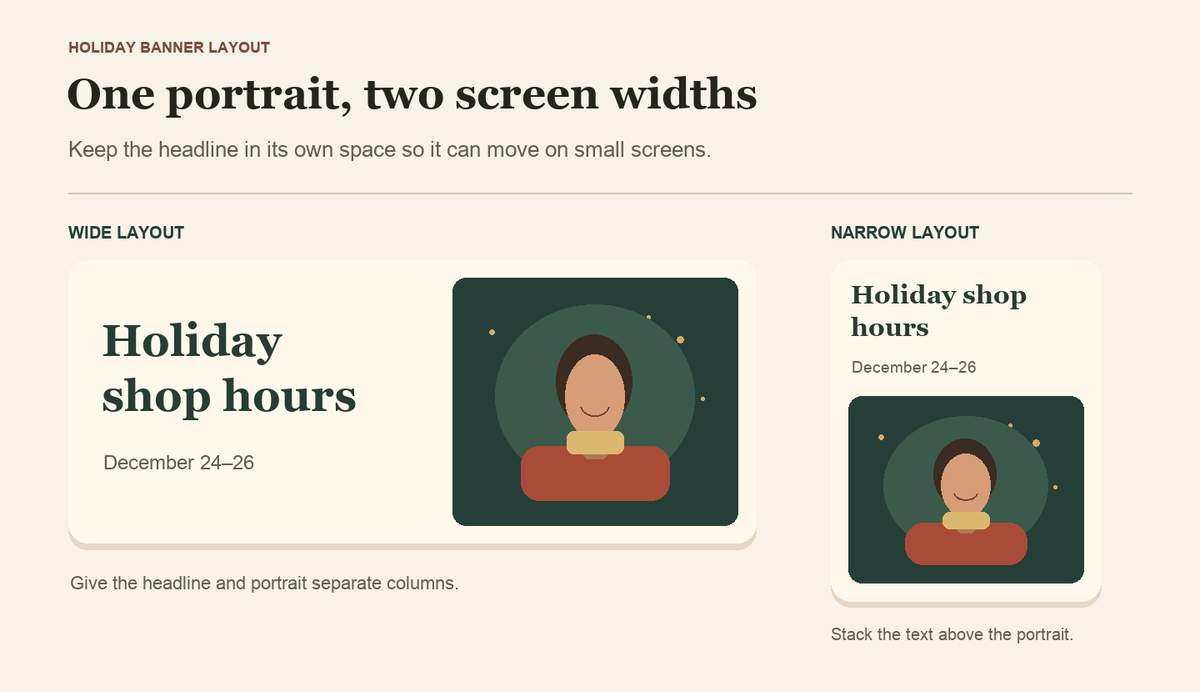
A Christmas portrait can look right on its own, then give you nowhere to put the shop hours once you drop it into a wide banner. Give the headline its own block beside the photo. You can then move the headline for a narrow screen without cutting into the face or shrinking the type.
Make a place for the headline first
Write the shortest version that gives readers what they need. “Holiday shop hours” with the dates on the next line is enough for a schedule notice. In your shop or email editor, put that text in a plain block beside the portrait. Start with roughly equal columns and give the text more width if a short headline wraps awkwardly.
You can build the same layout with the portrait you already have. Use a solid background for the text area and leave padding between the last letter and the photo edge. Keep the date as editable text so you can update it in both versions of the banner without re-exporting the portrait.
Fit the portrait to its own space
Start from a crop that leaves room around the hair, chin and shoulders. At banner size, a face pressed up against the top edge looks crowded. A little room in the original file also gives you space to adjust if your shop theme automatically crops the photo.
I’m affiliated with FestiveLooks. If you want to make a Christmas version of the portrait, its Snowy Portrait look can style a single portrait. Compare the result with the source photo, choose the version you’re comfortable sharing, and download it before arranging the banner in your editor.
Stack the two blocks on a phone
On a narrow screen, put the headline and date above the photo. Use the same text and let each block fill the available width. Check the crop again because mobile themes often display a picture in a taller frame. The layout illustration shows how the two columns can become a single stack.
Preview the actual shop page or send yourself a test email. Look for a broken date line, text too close to the edge, and a face that gets clipped when the image resizes. If the date wraps, shorten the line or give the text its own row. If the subject is clipped, adjust the photo crop within its block. Once you can read the date and recognize the person at a glance, keep that layout for the rest of the holiday notices.